
How Seniors Can Use Telehealth Easily
- Home
- How Seniors Can Use Telehealth Easily
How Seniors Can Use Telehealth Easily
Estimated read time: 6–7 minutes
TL;DR: With a smartphone, tablet, or computer, you can see your clinician from home. Pick a device, set it up once, try a short test call, and keep a simple checklist for each visit. Invite a trusted family member if you’d like help. Telehealth is great for check-ups, refills, minor illnesses, and follow-ups—use in-person or emergency care for serious or sudden symptoms.
What telehealth can help with
- Cold/flu, COVID questions, allergies, sinus or ear pain
- Medication refills and side-effect checks
- Blood pressure, diabetes, asthma/COPD and other chronic-condition tune-ups
- Skin concerns (show the rash or mole on camera)
- Mood, sleep, stress, and memory check-ins
- After-hospital follow-ups and care-plan reviews
Go in person or call emergency services for chest pain/pressure, severe shortness of breath, blue/gray lips or face, one-sided weakness or trouble speaking, heavy bleeding, new confusion, or any symptom that feels dangerous or rapidly worsening.
Getting started (one-time setup)
- Choose your device
- Smartphone (iPhone/Android), tablet, or computer with a camera and microphone.
- Connect to the internet
- Home Wi-Fi works best. Sit close to your router if your signal is weak.
- Create your patient account
- Use the clinic’s official website or app. Make a strong password and write it down in a safe place.
- Update the device
- Install updates. Allow the app or browser to use your camera and microphone.
- Practice once
- Do a test call with a family member or clinic staff so you know how to join.
- Pick your spot
- Quiet room, good light in front of you (not a bright window behind), device plugged in or fully charged.
Booking a visit (simple steps)
- Open the clinic’s app or website and choose Telehealth/Video Visit.
- Pick a date and time. Add the phone number where you can be reached.
- If asked, answer a few pre-visit questions and list your medications.
- You’ll get a link by text or email. Save it. (If someone calls unexpectedly asking for money or your full Social Security number, hang up and call the clinic directly.)
Your pre-visit checklist (print or save)
- Medications: bottles or a written list (name, dose, how often).
- Readings if you track them: blood pressure, blood sugar, weight, oxygen level.
- Symptoms: when they started, what helps/worsens them.
- Pharmacy: name and location.
- Questions: write the top 2–3 you want answered.
- Help: invite a trusted family member/caregiver to join if you wish.
Joining the visit
- Click the link 5–10 minutes early.
- Turn camera and microphone on if prompted.
- Set the device on a stable surface at eye level.
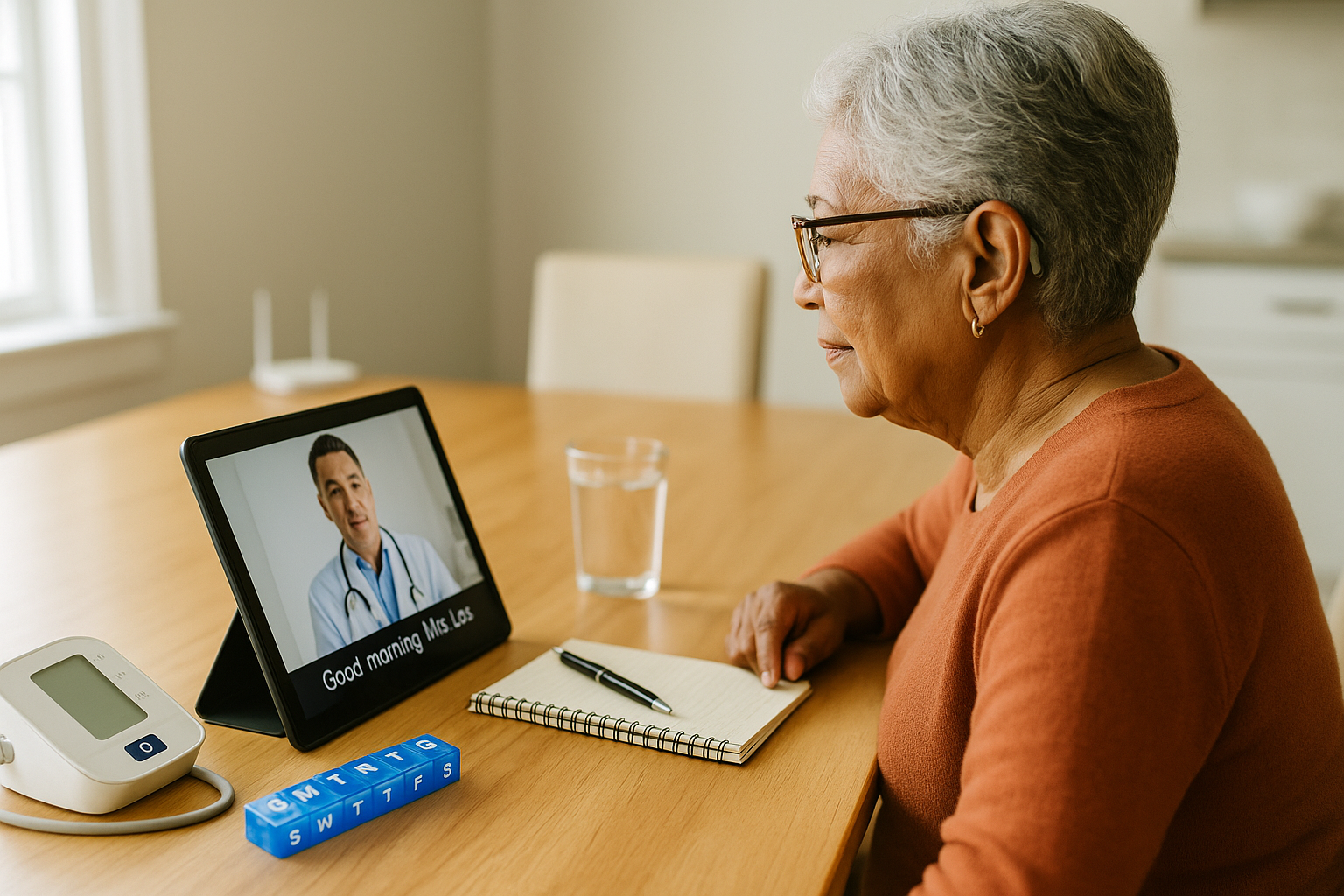
- Keep important items nearby (glasses, hearing aids, water, pen and paper).
- If the video freezes, hang up and rejoin, or answer the clinic’s phone call.
Accessibility tips
- Bigger text: increase font size in your phone or browser settings.
- Louder sound: use wired or Bluetooth headphones; turn on captions if available.
- Clear picture: clean the camera lens; add a lamp in front of you.
- Hands free: use a stand or prop your device so you don’t have to hold it.
- Caregiver access: ask the clinic about adding a proxy or “care partner” to your account.
After the visit
- You’ll receive instructions in your patient portal or by email/text.
- Prescriptions go to your chosen pharmacy.
- Set any follow-up appointment before you forget.
- If you don’t understand part of the plan, send a message through the portal or call the clinic.
Home tools that make visits better
- Blood pressure monitor (upper-arm, automatic)
- Thermometer
- Weight scale
- Glucose meter or CGM (if you have diabetes)
- Pulse oximeter (helpful for lung or heart conditions)
- Pill organizer and a simple health log (paper or app)
Quick troubleshooting
- No sound? Make sure volume is up; check the little microphone icon isn’t muted. Try headphones.
- They can’t see you? Tap the camera icon. Close other apps using the camera (FaceTime, Zoom).
- Choppy video? Move closer to Wi-Fi, ask others at home to pause streaming, or switch to audio-only if needed.
- Can’t find the link? Search your email/texts for the clinic’s name; or open your patient portal and join from appointments.
Safety & privacy basics
- Use the official app/website; avoid links from strangers.
- Never share your full Social Security number, bank info, or passwords on a call.
- Keep your device locked with a passcode, and sign out of the portal when finished.
- Only invite people you trust into the room or call.
When telehealth is not enough
Telehealth is perfect for planning, refills, and many illnesses. You’ll still need in-person visits for things like vaccines, blood tests, X-rays, heart tests, Pap tests, mammograms, colonoscopies, stitches, IV fluids, or any problem that needs a hands-on exam.
How SendClinic can support you
- Friendly setup help and test call if you’d like
- Same-day video visits for common concerns
- Clear written instructions after each visit
- Follow-ups to make sure you’re feeling better
Educational content only. This article is not a substitute for medical advice. Always follow your clinician’s guidance and local emergency instructions.
- Share
